> For the complete documentation index, see [llms.txt](https://docs.madconnect.ai/llms.txt). Markdown versions of documentation pages are available by appending `.md` to page URLs; this page is available as [Markdown](https://docs.madconnect.ai/connections.md).
# Connections
## Connections Overview
In MadConnect, **Connections** represent the bridge between a data source and a destination, using preconfigured connectors to define how and what data is transferred. While connectors define the integration capabilities with a platform, **connections are the actual instances where data flow happens**.
This page provides a client-facing overview of what connections are, how they function, and how to configure and manage them in the MadConnect platform.
***
### What Is a Connection?
A connection is the specific pairing of a **source connector** and a **destination connector** configured to transfer a defined dataset according to a platform schema. It contains the metadata, credentials, and rules necessary for executing that transfer securely and accurately.
For example:
* A connection might sync hashed emails from Snowflake to Meta Custom Audiences.
* Another might push server-side conversion events from BigQuery to Google Ads.
* A third might pull campaign reporting from The Trade Desk into Snowflake.
***
### Key Components of a Connection
* **Source Connector**: The platform and configuration from which data will be pulled (e.g., Snowflake, S3, Redshift).
* **Destination Connector**: The platform to which data will be delivered (e.g., Meta, Google, TTD).
* **Schema Mapping**: Field-level mapping between your data source and the expected schema of the destination platform.
* **Authentication**: Credentials and API keys required to authorize access to both ends.
* **Transfer Mode**: Defines how data is delivered (e.g., full replace, incremental add, daily sync).
* **Scheduling and Logging**: Optional timing controls and full visibility into job status, errors, and delivery results.
***
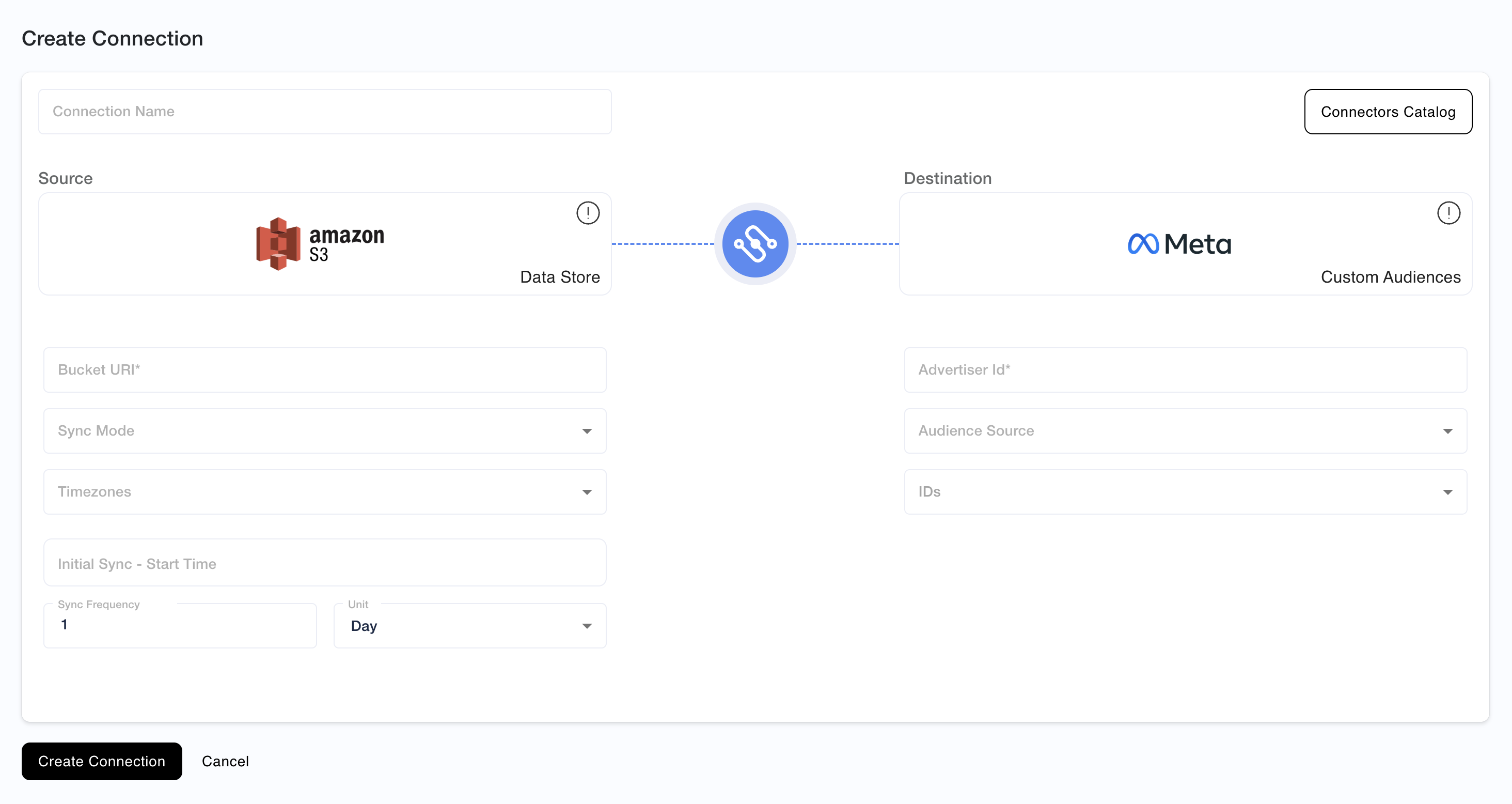
### Creating a Connection in MadConnect
To create a new connection:
1. Go to **My Connections** and click **Create Connection**
2. Select your **Source** and **Destination** platforms
3. Choose the relevant **Connectors**
4. Input authentication details if not already configured
5. Define schema field mapping (manual or guided wizard)
6. Add optional metadata or transfer preferences
7. Save and **Activate** the connection
Once active, you can initiate the transfer manually or schedule it as needed.
***
## Incremental Loads and Marker Columns in MadConnect
MadConnect supports both **manual** and **scheduled** sync modes. To make these syncs efficient, the platform uses a **marker column** to determine which records or files are new since the last successful transfer.
***
### Marker Columns
A **marker column** is a field in your source that MadConnect uses as a cursor to detect new or updated data. Supported formats include:
* **Datetime string** (e.g., `2025-08-20 14:35:00`)
* **Unix timestamp** (e.g., `1754463600`)
* **Incremental number** (e.g., `load_id = 123`)
When you configure a connection, you specify the marker column in the **Marker Column** field. MadConnect stores the *last successful marker value* and uses it to filter data for the next sync.
***
### How Incremental Loads Work
#### Table-based Sources
For tables (e.g., in Snowflake), MadConnect pulls only the rows where the marker column value is **greater than the last stored value**.
* **Example**: If `load_id` is set as the marker column:
* First sync pulls all records with `load_id = 1`.
* On the next sync, only rows with `load_id > 1` are processed.
#### File-based Sources
For storage systems (e.g., S3 buckets), MadConnect uses the file’s **modified timestamp** as the marker.
* After a successful transfer, MadConnect stores the highest modified timestamp.
* On the next run, only files with a later modified timestamp are included.
***
### Sync Modes
#### Manual Sync
* Triggered on demand by the user.
* Uses the last stored marker value to determine which records/files to pull.
* **Best for** testing, troubleshooting, or one-time loads.
* **Limitation**: Not automated — you must remember to run it.
#### Scheduled Sync
* Runs automatically on the schedule you set (e.g., every 24 hours).
* Uses the last stored marker value from the previous run.
* **Best for** continuous pipelines and production workloads.
* **Limitation**: If marker column values are not strictly increasing or consistent, records may be skipped or duplicated.
***
### Benefits of Incremental Loads
* **Efficiency**: Only new/updated data is processed, reducing load times and costs.
* **Reliability**: Keeps transfers consistent and avoids re-processing old data.
* **Flexibility**: Works with multiple formats (datetime, timestamp, numeric IDs).
***
### Incremental Loads Example with a Snowflake Table Source
This section explains how incremental loads work in MadConnect when using a Snowflake table as the source, including what happens during normal operation and how the system behaves when errors occur.
#### Scenario 1 — Normal Operation (No Failures)
**What happens**
* Last successful marker: `99`
* New records arrive with marker values `100–120`
* MadConnect processes all chunks successfully
**Result**
* Marker advances to `120`
* Next scheduled run processes records where `marker > 120`
**Outcome**
* Incremental loads progress smoothly
* No duplicate processing
* No manual intervention required
***
#### Scenario 2 — Hard Failure (Blocking Error)
A **hard failure** is an error that prevents the pipeline from continuing (for example, a schema violation or destination API rejection).
**Example**
* Last successful marker: `99`
* Chunk containing marker value `100` triggers a hard failure
**System behavior**
* Marker **does not advance**
* Marker remains at `99`
**Next scheduled run**
* MadConnect queries records where `marker > 99`
* The system attempts to process marker value `100` again
**Implication**
* The pipeline will continue to fail on subsequent runs **until the underlying issue at marker value `100` is resolved**
* This behavior is **intentional** and prevents data loss or skipped records
***
#### Scenario 3 — Soft Failure (Non-Blocking Error)
A **soft failure** occurs when individual records are skipped or ignored, but the pipeline is able to continue processing (for example, empty rows or non-critical validation issues).
**Example**
* Issues occur around marker value `100`
* The system continues processing successfully through marker value `105`
**System behavior**
* Marker advances to `105`
**Next scheduled run**
* MadConnect processes records where `marker > 105`
**Implication**
* Records associated with the soft failure may be bypassed
* The pipeline continues to move forward without blocking future loads
***
### Summary of Incremental Load Behavior
* **Markers advance only on successful processing**
* **Hard failures block progress** and must be resolved before the pipeline can continue
* **Soft failures allow progress**, and the marker can advance past problematic records
* This design ensures data integrity while still allowing flexibility for non-critical issues
If you encounter repeated failures at the same marker value, it indicates that the underlying data must be corrected before incremental loads can resume successfully.
***
### Key Considerations
* The marker column must have **monotonic behavior** (values always increase or strictly represent newer data).
* Backfills or out-of-order data may require a **full reload**.
* A failed transfer does not advance the marker — data will be retried on the next run.
***
⚡ *Tip: For most use cases, we recommend a numeric `load_id` or a reliable timestamp column as the marker field.*
***
### Managing Connections
* View your connections in the **Active** or **In Progress** tabs
* Use the **Reports** tab to monitor transfer history, delivery status, and failures
* Edit, pause, or remove connections at any time
* Re-authenticate if credentials expire
***
### Why Connections Matter
* **Visibility**: Know exactly how your data is flowing across platforms
* **Reusability**: Reconfigure existing connections as your campaign strategy evolves
* **Reliability**: Connections inherit the schema validation and retry logic from MadConnect’s core framework
***
Need help configuring your first connection? See [Initiate First Transfer](/getting-started/initiate-first-transfer.md) or reach out to [**support@madconnect.io**](mailto:support@madconnect.io).